PPlaylee support
Help centre
Straightforward help for setting up tournaments, adding teams, building fixtures, entering scores, and running the day with less stress.
Guide
Estimated read: 9 min
Run public pages and presentation mode
Check the public pages before you share them. That is where coaches, parents, and spectators will look first.
Quick answer
Open the public fixtures, results, and standings pages before you share the link. If anything looks wrong, fix the tournament data first.
Before you start
A tournament with public-facing data
Check the public pages
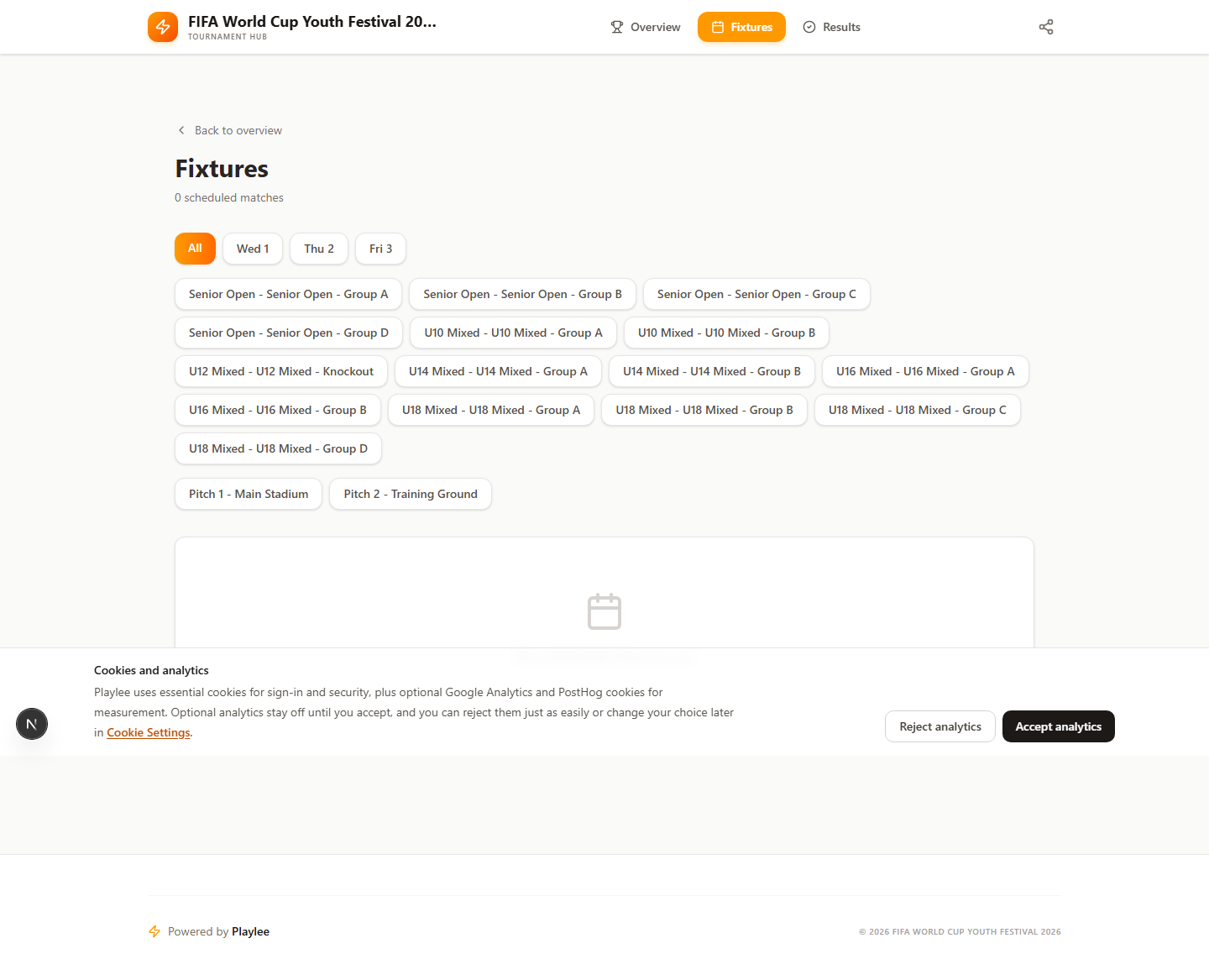
- Open the public fixtures page and check the times, pitch names, and age groups.
- Open the results page and make sure it does not look empty by mistake.
- Open the standings page and check that the group names and points make sense.
- If you are using a presentation screen, open that too and see what it looks like from a distance.
Check before you share
Checklist
- The pages look tidy on mobile.
- The pages are clear to a parent who has never used Playlee before.
- The public link is the one you actually want to share.
Read the fixtures page like a parent or team manager would, not like the admin who built it.