PPlaylee support
Help centre
Straightforward help for setting up tournaments, adding teams, building fixtures, entering scores, and running the day with less stress.
Walkthrough
Estimated read: 7 min
Referee invites and portal access
Invite referees from the Referees page and make sure they can open their portal before the event.
Quick answer
Open Referees, send the invite to the correct email address, and check that the referee can see their matches in the portal.
Before you start
Referee contact detailsA schedule with assignments or near-final fixtures
Send the invite
- Open Referees and click the button to add or invite a referee.
- Type the referee name and email address carefully.
- Send the invite.
- Ask the referee to open the link straight away so you can confirm it works while you are still at your desk.
- If needed, resend the invite rather than asking them to keep trying an old link.
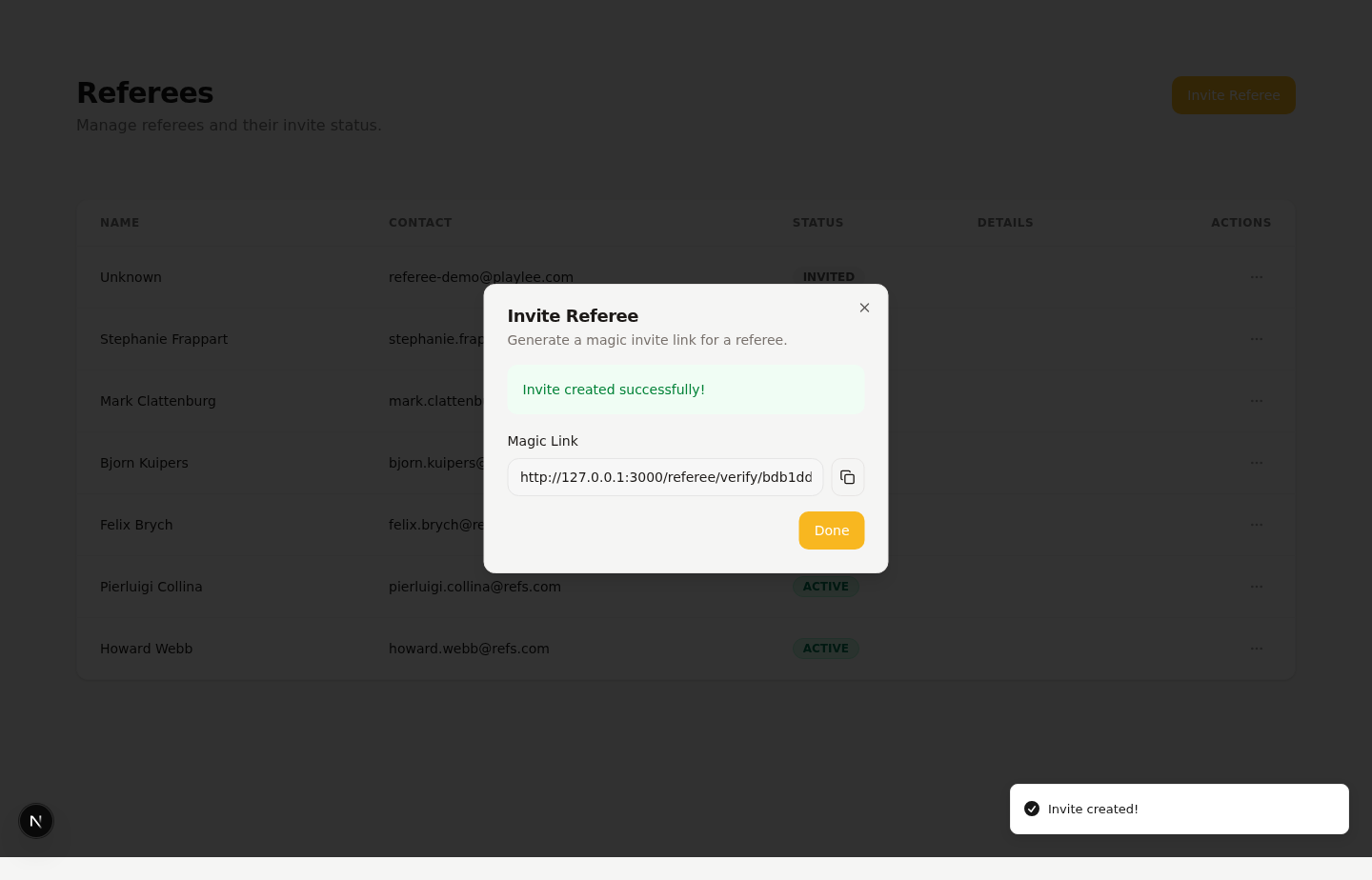
Use the invite screen to send the referee the right link and check they can get in before matchday.
Check the referee portal
- Open the referee portal or ask the referee what they can see.
- Make sure their upcoming matches are visible.
- Check that the correct pitch and kick-off time are shown.
- If you change lots of assignments later, check the portal again before the event starts.
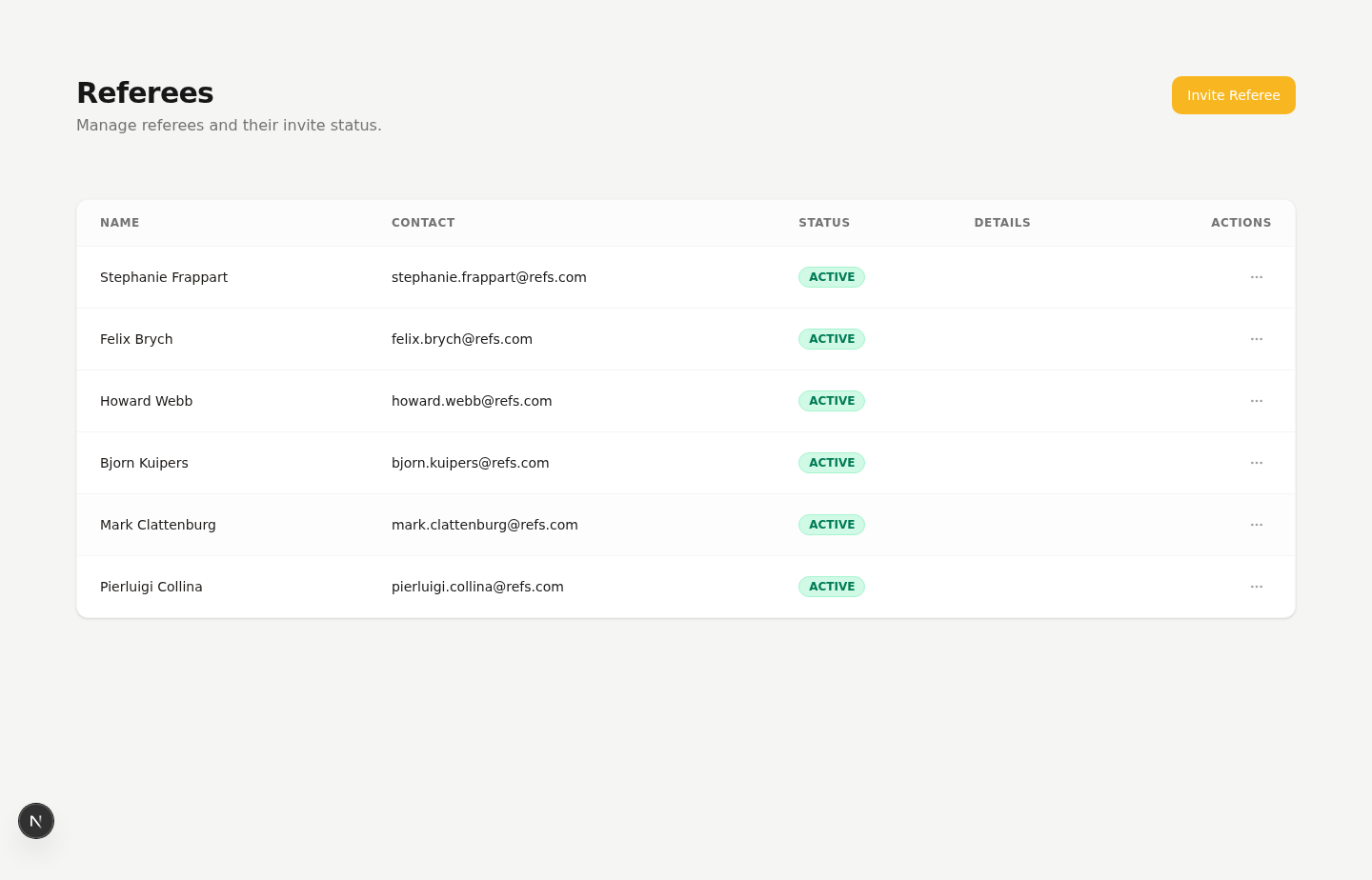
Check that the referee can see the right matches before you rely on the portal on the day.